It is the last hour of a routing lab. You have two routers, two PCs, and a static route you typed carefully on R1. You run ping 192.168.20.10 from PC-A and get Request timed out, four times. You check R1 and the route is sitting right there in the routing table. So why is nothing coming back?
I see this in almost every Routing and Switching class, and I saw it at work long before I taught it. The route you added is fine. The problem is the route you did not add. In this article I will walk you through a small two-router network, show you exactly where the packet dies, and give you a short routine you can use on any static routing problem, in the lab today or on a real network next month.
The lab network we are working with
Keep the topology small so the thinking is clear. Here are the addresses:
PC-A: 192.168.10.10/24, default gateway 192.168.10.1
R1: G0/0 is 192.168.10.1/24 (the PC-A LAN), G0/1 is 10.0.0.1/30 (the link to R2)
R2: G0/1 is 10.0.0.2/30, G0/0 is 192.168.20.1/24 (the PC-B LAN)
PC-B: 192.168.20.10/24, default gateway 192.168.20.1
Each router only knows the networks plugged straight into it. R1 knows 192.168.10.0/24 and 10.0.0.0/30. R2 knows 10.0.0.0/30 and 192.168.20.0/24. Neither knows the far LAN until you tell it. That is the whole job of a static route.
What the student configured
On R1 the student added a route to the PC-B network, pointing at R2:
R1(config)# ip route 192.168.20.0 255.255.255.0 10.0.0.2Read it out loud: to reach 192.168.20.0 with mask 255.255.255.0, send the packet to 10.0.0.2. That is correct. Then they checked it:
R1# show ip route static
S     192.168.20.0/24 [1/0] via 10.0.0.2
The S means static. The [1/0] is the administrative distance (1 for a static route) and the metric (0). via 10.0.0.2 is the next hop. Everything here says R1 is ready. And it is. That is exactly what makes this problem confusing.
Follow the packet, both ways
A ping is two journeys, not one. PC-A sends an echo request to PC-B, and PC-B has to send an echo reply back to PC-A. Both trips need a route.
Trip one: PC-A sends the request to its gateway, R1. R1 looks up 192.168.20.10, matches the static route, and forwards it to R2. R2 has 192.168.20.0/24 directly connected, so it delivers it to PC-B. So far so good.
Trip two: PC-B replies to 192.168.10.10. It sends the reply to its gateway, R2. Now R2 looks in its routing table for 192.168.10.0/24 and finds nothing. No route, no default route. R2 drops the reply. PC-A waits, hears nothing, and prints Request timed out.
The figure below shows the two trips and the exact point where the reply dies.
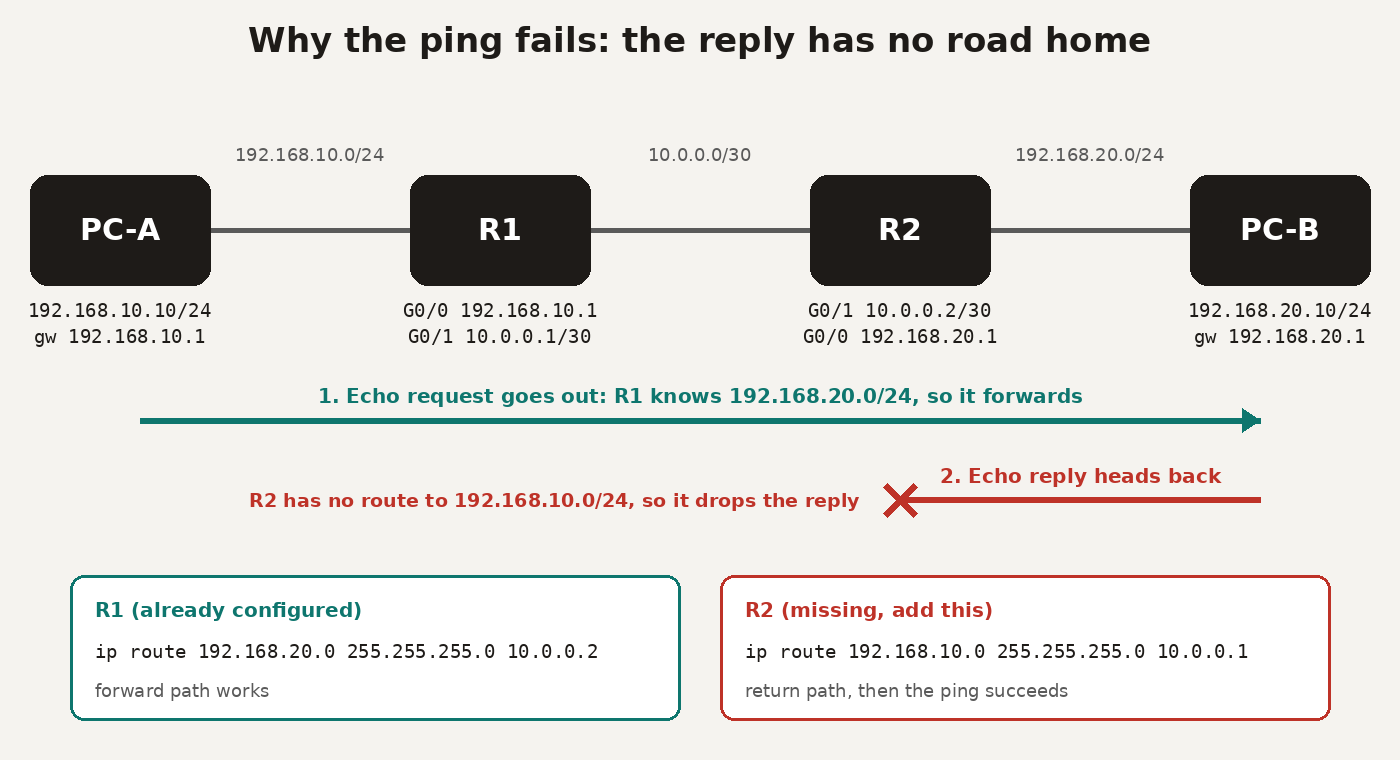
This is the single most useful idea in static routing: routing is one-way. A route on R1 helps traffic leaving R1. It does nothing for traffic coming back. Every network that needs to talk needs a route in both directions.
Prove it before you fix it
Do not just guess and start typing. Prove where the packet stops. Three commands do it.
1. Look at R2's routing table.
R2# show ip route
C     10.0.0.0/30 is directly connected, GigabitEthernet0/1
L     10.0.0.2/32 is directly connected, GigabitEthernet0/1
C     192.168.20.0/24 is directly connected, GigabitEthernet0/0
L     192.168.20.1/32 is directly connected, GigabitEthernet0/0
Gateway of last resort is not set
C lines are connected networks and L lines are the router's own interface addresses. Notice what is missing: there is no line for 192.168.10.0/24, and Gateway of last resort is not set means there is no default route either. R2 has nowhere to send the reply.
2. Ping from the router itself, using a chosen source.
R1# ping 192.168.20.10 source 192.168.10.1
.....
Success rate is 0 percent (0/5)
Sourcing the ping from R1's LAN address makes the router behave like PC-A. If you ping without a source, R1 uses 10.0.0.1, which R2 does know because it is directly connected. That ping succeeds, and students then wrongly decide the routing is fine. Always test with the source address of the network you actually care about.
3. Trace the path from PC-A.
C:\> tracert 192.168.20.10
  1   0 ms   0 ms   0 ms   192.168.10.1
  2   *      *      *      Request timed out.
Hop one is R1, so the request leaves PC-A properly. After that, silence. Traceroute depends on replies coming back too, so a trace that stops right after the first router is another strong hint that the return path is broken.
The fix: add the return route
Give R2 a route back to PC-A's network, with R1 as the next hop:
R2(config)# ip route 192.168.10.0 255.255.255.0 10.0.0.1Check it on R2, then test again from the command prompt on PC-A:
R2# show ip route static
S     192.168.10.0/24 [1/0] via 10.0.0.1

C:\> ping 192.168.20.10
Reply from 192.168.20.10: bytes=32 time=1ms TTL=126
The TTL=126 is a nice little confirmation. Windows starts at 128 and each router subtracts one, so 126 means the reply crossed exactly two routers. The path is complete.
On a small stub network like PC-B's side, a default route on R2 would also work, because R1 is the only way out:
R2(config)# ip route 0.0.0.0 0.0.0.0 10.0.0.1Use the specific route in the lab when the task asks for it. Use the default route when a router genuinely has one exit, such as a branch router facing the head office or the internet.
What usually goes wrong
When the return route is not the problem, it is almost always one of these. I have marked enough lab scripts to know the list by heart.
Wrong next hop. The next hop must be an address on a network the router is directly connected to. Pointing R1 at 192.168.20.1 instead of 10.0.0.2 gives you a route that never works, because R1 cannot reach 192.168.20.1 directly.
Wrong mask. Typing 255.255.0.0 when you meant 255.255.255.0 creates a route to a different, bigger network. Read the mask back in
show ip route, which prints it as /16 or /24.Network address mistakes. The destination must be the network address, 192.168.20.0, not a host like 192.168.20.10. IOS will usually complain, but read what it says.
The interface is down. A static route whose next hop is unreachable disappears from the routing table. Run
show ip interface briefand make sure the link shows up/up. A forgottenno shutdownon G0/1 has wasted many lab hours.Wrong gateway on the PC. If PC-B's default gateway is blank or wrong, PC-B cannot even hand the reply to R2. Always check the end hosts too.
A firewall on the PC. Windows Firewall blocks inbound ping by default on some profiles. If the routing tables are perfect and the ping still fails, test the host firewall before you rebuild the network.
A routine to use next time a ping fails
Write this in the back of your lab book. It works on two routers and it works on twenty.
Check the interfaces with
show ip interface briefon every router in the path. Fix anything that is not up/up first.Walk the request forward. On each router, ask: does
show ip routehave an entry for the destination network?Walk the reply back. On each router, ask the same question for the source network. This is the step people skip.
Test from the router with
pingand thesourcekeyword so you are testing the real networks.Only then look at the hosts: IP address, mask, default gateway, and firewall.
If you are new to the switching side of these labs, my guide to VLANs and trunking covers how the LAN behind each router is built. If you are preparing for the exam, this exact two-way thinking appears in CCNA troubleshooting questions all the time, and my 90-day CCNA study plan shows where routing fits in your revision.
Before your next lab, build this small network in Packet Tracer, add only the R1 route, and watch the ping fail. Then add the R2 route and watch it work. Once you have seen the reply die with your own eyes, you will never forget that every route needs a way home.