Every server that faces the internet gets visitors it never invited. Most system administrators know this in theory. Very few actually look. The log is there, thousands of lines a week, and nobody opens it until something breaks. So this week I did the exercise I give in the system administration labs, on my own production server: write a small Python script, point it at the SSH log, and let it tell me who has been knocking.
The numbers in this article are real. They come from the server that runs this site, for the week of 11 to 17 October 2026. I have hidden the last part of each IP address, and I explain why further down.
What you need
Python 3.6 or newer. My server is AlmaLinux 8 and ships Python 3.6.8, so the script below avoids anything newer than that.
An SSH log you are allowed to read. On Ubuntu Server it is
/var/log/auth.log. On AlmaLinux, Rocky and RHEL it is/var/log/secure. Both are readable by root only, so you will usesudo.Your Ubuntu Server VM from the Linux labs, in VirtualBox or VMware. If you have no public server, the VM is fine. You will generate your own bad logins in Step 5.
No extra packages. Everything here is in the standard library: re for pattern matching, collections.Counter for counting and argparse for the command line options (see the re module documentation and the collections documentation).
Step 1: Look at the raw lines first
Before you write a single regular expression, read the log with your own eyes. I always tell system administrators that a parser written without looking at the data is a guess. Here are three real lines from my server. I masked the last part of each IP address before pasting:
Oct 16 21:35:25 srv sshd[1143616]: Invalid user devops from 77.83.39.x port 37100
Oct 16 21:35:27 srv sshd[1143616]: Connection closed by invalid user devops 77.83.39.x port 37100 [preauth]
Oct 14 16:56:51 srv sshd[1229904]: Connection closed by authenticating user root 98.86.143.x port 27634 [preauth]
Three kinds of line matter for security:
Invalid user. Someone tried a username that does not exist on the box, here
devops.Connection closed by authenticating user. The username exists (here
root), but the client gave up or was refused before it finished logging in. The [preauth] tag means it never got past authentication.Failed password. A real password guess that was wrong. You will see plenty of these on any server that still accepts passwords.
The fourth kind, Accepted, is a successful login. You want to count those too, because a successful login from an address you do not recognise is the one line in the whole file that should worry you.
Step 2: The script
Save this as ssh_report.py. Read it before you run it. It is short on purpose.
#!/usr/bin/env python3
"""ssh_report.py - summarise SSH login activity from auth.log or /var/log/secure."""
import argparse
import csv
import re
from collections import Counter

PATTERNS = {
    "invalid_user": re.compile(r"Invalid user (?P<user>\S*) from (?P<ip>\S+) port \d+"),
    "failed_password": re.compile(r"Failed password for (?:invalid user )?(?P<user>\S+) from (?P<ip>\S+) port \d+"),
    "preauth_close": re.compile(r"Connection closed by authenticating user (?P<user>\S+) (?P<ip>\S+) port \d+ \[preauth\]"),
    "accepted": re.compile(r"Accepted (?P<method>\w+) for (?P<user>\S+) from (?P<ip>\S+) port \d+"),
}
BAD = ("invalid_user", "failed_password", "preauth_close")


def mask(ip):
    parts = ip.split(".")
    if len(parts) == 4:
        return ".".join(parts[:3] + ["x"])
    return ip


def network24(ip):
    parts = ip.split(".")
    if len(parts) == 4:
        return ".".join(parts[:3]) + ".0/24"
    return ip


def parse(path):
    events = []
    with open(path, errors="replace") as fh:
        for line in fh:
            if "sshd[" not in line:
                continue
            stamp = line[:15]
            for kind, rx in PATTERNS.items():
                m = rx.search(line)
                if m:
                    events.append((stamp, kind, m.group("user") or "(blank)", m.group("ip")))
                    break
    return events


def main():
    ap = argparse.ArgumentParser(description="Summarise SSH logins")
    ap.add_argument("logfile")
    ap.add_argument("--threshold", type=int, default=5, help="bad attempts before an IP is flagged")
    ap.add_argument("--mask", action="store_true", help="hide the last octet of each IP")
    ap.add_argument("--csv", help="write flagged IPs to this CSV file")
    args = ap.parse_args()

    events = parse(args.logfile)
    kinds = Counter(e[1] for e in events)
    bad = [e for e in events if e[1] in BAD]
    by_ip = Counter(e[3] for e in bad)
    by_user = Counter(e[2] for e in bad)
    show = mask if args.mask else (lambda ip: ip)

    print("Log file:", args.logfile)
    if events:
        print("First event:", events[0][0], "| Last event:", events[-1][0])
    for k in ("accepted",) + BAD:
        print("{:<16} {:>6}".format(k, kinds.get(k, 0)))
    print("\nTop usernames tried by attackers:")
    for user, n in by_user.most_common(10):
        print("  {:<14} {:>4}".format(user, n))
    flagged = [(ip, n) for ip, n in by_ip.most_common() if n >= args.threshold]
    print("\nSource IPs: {} total, {} at or above {} bad attempts".format(len(by_ip), len(flagged), args.threshold))
    for ip, n in flagged[:10]:
        print("  {:<18} {:>4}".format(show(ip), n))

    nets = Counter()
    for ip, n in by_ip.items():
        nets[network24(ip)] += n
    print("\nBusiest /24 networks:")
    for net, n in nets.most_common(5):
        print("  {:<18} {:>4}".format(net, n))

    if args.csv:
        with open(args.csv, "w", newline="") as out:
            w = csv.writer(out)
            w.writerow(["ip", "bad_attempts"])
            for ip, n in flagged:
                w.writerow([ip, n])
        print("\nWrote", len(flagged), "rows to", args.csv)


if __name__ == "__main__":
    main()
The parts worth understanding
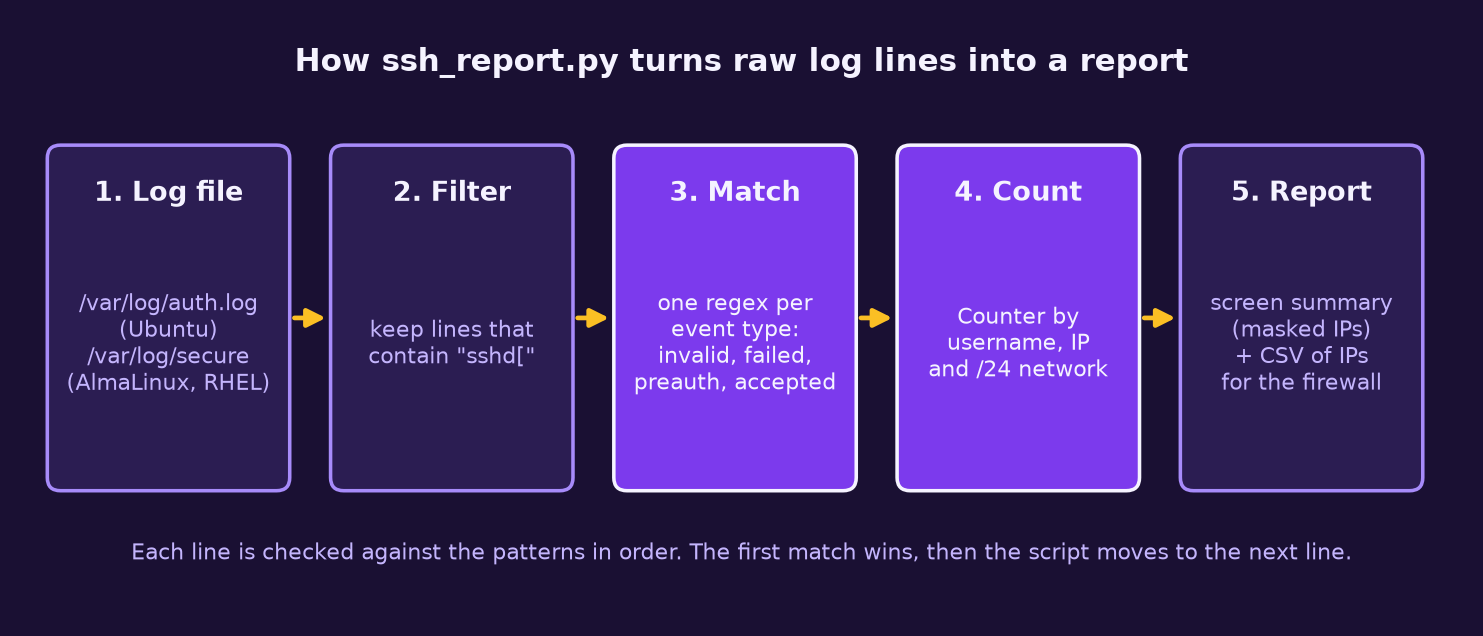
One regex per event type. The PATTERNS dictionary holds four compiled patterns. Named groups such as (?P<user>\S*) and (?P<ip>\S+) let the code pull out the username and address by name instead of by position. That makes the patterns easier to fix when a distribution changes its log format.
First match wins. Inside parse() the loop calls break as soon as one pattern matches. A single line is never counted twice.
Counter does the boring work. Counter(e[3] for e in bad) builds a tally of bad attempts per IP in one line, and most_common(10) gives you the top ten already sorted. Writing this with plain dictionaries is a good exercise once. After that, use Counter.
Masking is only for the screen. The --mask option hides the last octet when you print, so you can paste the report into a ticket, a WhatsApp group or a blog post. The CSV keeps full addresses, because that file goes to your firewall, not to people.
Step 3: Run it
sudo python3 ssh_report.py /var/log/auth.log --mask --threshold 5 --csv flagged.csvOn AlmaLinux or RHEL, change the path to /var/log/secure. Rotated logs work too. I ran it against last week's rotated file, /var/log/secure-20261018:
$ python3 ssh_report.py /var/log/secure-20261018 --mask --threshold 5 --csv flagged.csv
Log file: /var/log/secure-20261018
First event: Oct 11 11:10:38 | Last event: Oct 17 17:11:35
accepted           1414
invalid_user        183
failed_password       0
preauth_close        40

Top usernames tried by attackers:
  root             34
  devops            5
  localhost         3
  user1             3
  transfer          2
  nobody            2
  test2             2
  dipens            2
  darshb            2
  abs               2

Source IPs: 23 total, 18 at or above 5 bad attempts
  77.83.39.x           23
  77.83.39.x           23
  77.83.39.x           23
  77.83.39.x           23
  77.83.39.x           22
  85.11.167.x          14
  77.83.39.x           10
  77.83.39.x           10
  77.83.39.x            8
  77.83.39.x            7

Busiest /24 networks:
  77.83.39.0/24       207
  85.11.167.0/24       14
  98.86.143.0/24        1
  54.146.63.0/24        1

Wrote 18 rows to flagged.csv
Step 4: Read the result like an administrator
A report is only useful if you can say what it means. Here is how I read mine.
Zero failed passwords. This is not luck. Password login is switched off on this server and only SSH keys are accepted. In OpenSSH that is the PasswordAuthentication no setting in sshd_config (sshd_config manual). Attackers still connect and try usernames, but they never get a chance to guess a password. On a fresh Ubuntu VM with passwords on, you will see the opposite: a long list of failed_password lines. The Ubuntu OpenSSH server guide shows how to set up keys before you turn passwords off. Do it in that order, or you will lock yourself out.
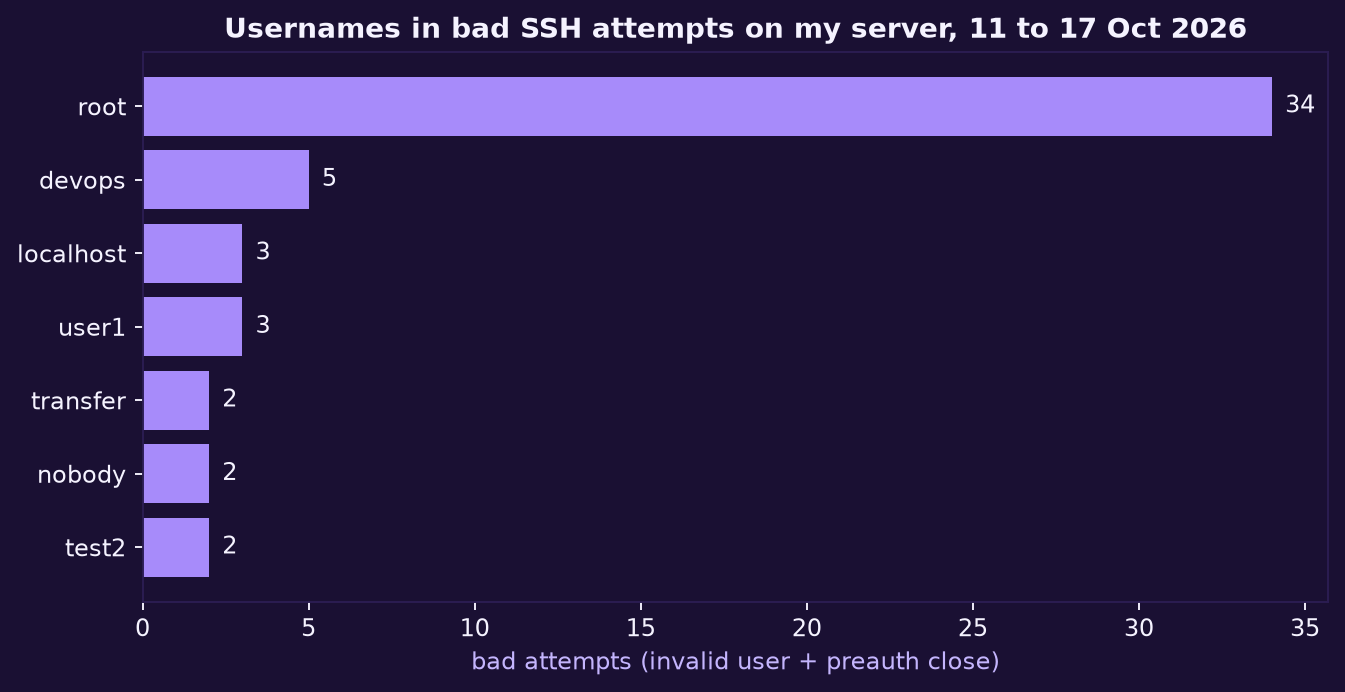
Root is the favourite target. 34 of the bad attempts went for root, far ahead of anything else. The rest is a dictionary of guesses: devops, user1, test2, nobody. Most of those accounts do not exist on my server, so they show up as invalid users. A few, like nobody, mysql and nginx, are real system accounts. They exist so services can run, and they have no business logging in over SSH. Attackers try them because a careless setup sometimes gives one a shell and a password.
One network did almost everything. 207 of the 223 bad attempts came from a single /24 network, spread across many addresses inside it. If you only look at single IPs, each one looks small, 23 attempts here, 10 there. Grouped by network, it is one source. This is why the script adds the Busiest /24 networks section. Blocking 18 addresses one by one is tidy work. Blocking one range is often the better decision, as long as you confirm you are not blocking your own users.
Check the small ones against your own logins. The last two networks in my report, one attempt each, are cloud ranges that my own automation also logs in from. The accepted entries show 140 key logins from those same two ranges. So those two lines are almost certainly my own scripts closing a connection early, not attackers. Before you block anything, compare the flagged networks with the source IPs of your accepted logins. The third raw line in Step 1 is one of those.
1,414 accepted logins. Every one of them used a public key, and they are my own sessions and scheduled jobs. On a server you manage for a client, this is the line to check first. Pull the accepted entries, list the source IPs, and ask whether you recognise each one.
Step 5: Make your own evidence in the lab
If you do not have a public server, create the attack yourself. From your host machine, SSH into your Ubuntu VM three times with a username that does not exist, then three times with your real username and a wrong password. Log in properly once. Then run the script on the VM against /var/log/auth.log.
You should see your host's IP flagged, your fake username in the top usernames list, and one accepted login. Now look closely at the totals. One wrong password for a fake user writes two lines: an Invalid user line and a Failed password for invalid user line. The script counts events, not attempts. Write down by how much it over-counts in your test, and think about how you would fix it. That is part of the exercise, not a bug I forgot to mention.
Step 6: Act on it
A report that nobody acts on is just a longer log. Three things you can do today:
Turn off password login once your key works, and restart
sshdfrom a second open session so you can roll back.Install fail2ban, which watches the same log and bans repeat offenders automatically (fail2ban project). My script tells you what happened. fail2ban responds while it is happening. You want both.
Run the report weekly from cron and keep the output. When a client or an auditor asks how you monitor access, a folder of weekly reports answers the question better than any policy document.
If you see something serious, such as an accepted login you cannot explain, treat it as an incident. In Uganda, CERT.UG under NITA-U is the national point of contact for reporting cyber incidents (CERT.UG).
A word on privacy
IP addresses can identify people, so be careful where your reports end up. That is why the screen output is masked and the full CSV stays on the server. If you build log tools for a Ugandan organisation, read my earlier piece on the Data Protection and Privacy Act for developers before you start shipping logs to a shared drive.
Your task
Run ssh_report.py on your VM or server, then extend it with one feature: an hourly breakdown that shows which hour of the day gets the most bad attempts. The timestamp is already in the first 15 characters of each line. Post your output, masked, and the lines you changed in the comments, and tell the rest of us what you found. If you got stuck on the log path or permissions, my post on Linux system administration basics covers sudo and file permissions.