Practical, step-by-step guide for beginners explaining every file and every important line of code
Overview
This tutorial explains, in detail, a small, classroom-ready project that demonstrates event driven programming using plain HTML, CSS, and JavaScript. The project is a minimal personal portfolio that includes a navigation menu, about and projects sections, interactive buttons, a dynamic project list, and a simple number counter. The objective is to teach how user actions trigger behavior in the page through events and handlers, and how to organize code with a simple class.
Learning objectives
- Understand the event driven programming paradigm in the context of the browser environment.
- Learn the HTML structure required for an interactive web page.
- Learn CSS basics to style the page and reinforce how JavaScript can modify style.
- Understand DOM selection and manipulation.
- Learn how to register and handle events using addEventListener.
- Learn simple state management with variables and classes.
- Practice incremental development through guided exercises.
Project structure
portfolio/
├── index.html      // markup and anchors for events
├── style.css       // visual styling
└── script.js       // event handlers, DOM manipulation, and class code
You will find that every interactive behavior in the page is driven by events. The code in script.js attaches listeners to DOM elements and updates the DOM or internal state when events occur.
index.html explained
Below is the important HTML skeleton you used. Explanations follow each block.
<!DOCTYPE html>
<html lang="en">
<head>
  <meta charset="UTF-8">
  <meta name="viewport" content="width=device-width, initial-scale=1.0">
  <title>My Simple Portfolio</title>
  <link rel="stylesheet" href="style.css">
</head>
<body>

  <nav>
    <h2 class="logo">MyPortfolio</h2>
    <ul id="navLinks">
      <li><a href="#about">About</a></li>
      <li><a href="#projects">Projects</a></li>
    </ul>
  </nav>

  <header>
    <h1 id="main-title">Welcome to My Portfolio</h1>
    <button id="changeColorBtn">Change Background</button>
  </header>

  <section id="about">
    <h2>About Me</h2>
    <p id="bioText">Hello, I am a passionate developer learning event driven programming.</p>
    <button id="changeTextBtn">Change Bio Text</button>
  </section>

  <section id="projects">
    <h2>My Projects</h2>
    <ul id="projectList">
      <li>Project A</li>
      <li>Project B</li>
    </ul>
    <button id="addProjectBtn">Add New Project</button>
  </section>

  <section id="counter">
    <h2>Simple Number Counter</h2>
    <p id="counterDisplay">0</p>
    <button id="incrementBtn">Increment</button>
    <button id="decrementBtn">Decrement</button>
    <button id="resetBtn">Reset</button>
  </section>

  <script src="script.js"></script>
</body>
</html>
Explanations
• <!DOCTYPE html> declares the document as HTML5. Browsers use this to render consistently.
• <html lang="en"> sets the document language for accessibility and search.
• <meta charset="UTF-8"> sets character encoding to UTF-8.
• <meta name="viewport" content="width=device-width, initial-scale=1.0"> makes the page responsive on small screens.
• <link rel="stylesheet" href="style.css"> links the external CSS file. Keeping styles in a separate file is a web best practice for separation of concerns.
• The <nav> block defines the navigation menu. The links use fragment identifiers like #about and #projects so the browser scrolls to those sections when clicked. These links also help teach the difference between navigation actions and JavaScript-driven actions.
• Each interactive element has an id attribute. For example id="changeColorBtn". IDs are unique and convenient for selecting a single element from JavaScript using document.getElementById. Teaching note: you may use classes for selecting multiple elements and IDs for single, unique elements.
• The ul#projectList contains initial project entries. The button #addProjectBtn is intended to create and append new li children at runtime. This demonstrates DOM creation.
• The counter section contains a display element p#counterDisplay and three control buttons. The p holds the visible state and the buttons will emit events to change the internal counter.
style.css explained
Essential styles used for layout and presentation. The stylesheet performs three functions: basic typography and spacing, navigation styling, and control appearance.
Representative CSS and explanation
body {
  font-family: Arial, sans-serif;
  margin: 0;
  background-color: rgb(245, 245, 245);
}

nav {
  background-color: #222;
  color: white;
  padding: 15px 20px;
  display: flex;
  justify-content: space-between;
  align-items: center;
}

nav ul {
  list-style: none;
  display: flex;
  gap: 20px;
  margin: 0;
}

button {
  padding: 10px 15px;
  cursor: pointer;
  border: none;
  background-color: #008cba;
  color: white;
  border-radius: 5px;
}
Why these rules matter for the lesson
display: flexon the nav is a modern layout technique. Use it to illustrate responsive layout without floats.- The
gapproperty simplifies spacing between nav items compared with margins on each list item. - Buttons are styled with no border and a colored background. This makes interaction affordances (the visual clues that something is clickable) obvious.
background-coloronbodyis initially neutral; JavaScript will change it to illustrate the difference between static CSS and dynamic style modification.
Teaching note: when students modify CSS at runtime with JavaScript, explain the cascading nature of styles and how inline styles set by JS override external stylesheet rules.
script.js explained
This file binds behavior to elements and organizes some data in a class.
Complete annotated code and explanation
// A simple class to manage portfolio data
class Portfolio {
  constructor() {
    this.projects = ["Project A", "Project B"];
  }

  addProject(name) {
    this.projects.push(name);
  }
}

// Create portfolio object
const myPortfolio = new Portfolio();

// Selecting elements
const changeColorBtn = document.getElementById("changeColorBtn");
const changeTextBtn = document.getElementById("changeTextBtn");
const addProjectBtn = document.getElementById("addProjectBtn");
const bioText = document.getElementById("bioText");
const projectList = document.getElementById("projectList");

// Counter elements
const counterDisplay = document.getElementById("counterDisplay");
const incrementBtn = document.getElementById("incrementBtn");
const decrementBtn = document.getElementById("decrementBtn");
const resetBtn = document.getElementById("resetBtn");

// Initial counter value
let counterValue = 0;

// Update display
function updateCounter() {
  counterDisplay.textContent = counterValue;
}

// EVENT 1: Change background color
changeColorBtn.addEventListener("click", () => {
  const r = Math.floor(Math.random() * 256);
  const g = Math.floor(Math.random() * 256);
  const b = Math.floor(Math.random() * 256);
  document.body.style.backgroundColor = `rgb(${r}, ${g}, ${b})`;
});

// EVENT 2: Change bio text
changeTextBtn.addEventListener("click", () => {
  bioText.textContent = "I love building interactive applications using event-driven programming.";
});

// EVENT 3: Add new project
addProjectBtn.addEventListener("click", () => {
  const projectName = prompt("Enter new project name:");
  if (projectName) {
    myPortfolio.addProject(projectName);
    const li = document.createElement("li");
    li.textContent = projectName;
    projectList.appendChild(li);
  }
});

// EVENTS: Counter controls
incrementBtn.addEventListener("click", () => {
  counterValue++;
  updateCounter();
});

decrementBtn.addEventListener("click", () => {
  counterValue--;
  updateCounter();
});

resetBtn.addEventListener("click", () => {
  counterValue = 0;
  updateCounter();
});
Breakdown and notes
- Class definition
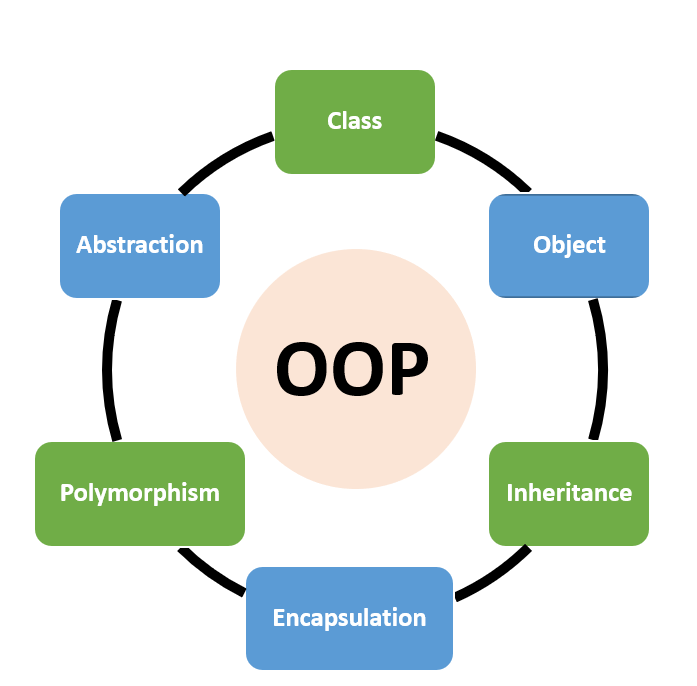
class Portfolio { ... }- Purpose: demonstrate encapsulation of data and methods. This is a lightweight example of how objects can hold state.
constructor()initializes theprojectsarray.addProject(name)is a single responsibility method that modifies internal state.
- Instantiation
const myPortfolio = new Portfolio();- Demonstrates creating an object instance. Students can inspect
myPortfolio.projectswith the developer console.
- Demonstrates creating an object instance. Students can inspect
- DOM selection
document.getElementById("...")returns a reference to the DOM element with the matching id. Teach the difference betweengetElementById,querySelector, andquerySelectorAll.querySelectoris more flexible but slightly slower; both are fine for the classroom.
- Event registration with
addEventListener(event, handler)addEventListenerregisters an event listener without overwriting existing listeners. Emphasize that this is the recommended pattern relative to settingonclickdirectly because it allows multiple listeners and better separation of concerns.- The first argument is the event name, for example
click. The second argument is a function to run when the event fires. This function is the event handler.
- Random background color function
Math.random()andMath.floor()produce integers in[0, 255]for RGB channels. Settingdocument.body.style.backgroundColorchanges the inline style, which overrides the external stylesheet for that property.
- Changing text content
element.textContent = '...'updates the visible text.textContentis safer for text only. If HTML is needed useinnerHTMLwith caution because it can introduce security risks if not sanitized.
- Creating and appending DOM nodes
document.createElement('li')creates a new list item.projectList.appendChild(li)inserts the element as the last child. This demonstrates the typical pattern: create node, set properties, append to DOM.
- The counter logic
let counterValue = 0holds the state. The UI displayscounterValueviaupdateCounter()which writes intocounterDisplay.textContent. Each button click mutates the state and callsupdateCounter()to reflect the state in the interface. This is a clear separation between state and view.
Common pitfalls to highlight
• Not waiting for DOM content to load before selecting elements. In this project the script is placed at the end of body so elements already exist. Alternatively use document.addEventListener('DOMContentLoaded', ...).
• Using innerHTML carelessly. Use textContent for text to avoid script injection vulnerabilities.
• Not validating user input from prompt. For production code validate and sanitize input; for the classroom this is a good opportunity to add a simple validation exercise.
Event driven programming concepts (concise theory)
Event-driven programming is a paradigm where the program flow is determined by events rather than a linear sequence of commands. In a browser:
• Events are produced by the environment or user actions, for example click, keypress, load, submit, or timer ticks.
• An event listener waits for a particular event to be fired. When it is fired the associated handler function executes.
• The event object available to handlers contains contextual information such as the target element, event type, coordinates for mouse events, and key codes for keyboard events. Use event as a parameter in the handler to inspect it.
• This paradigm enables responsive interactive applications because the program reacts to external input instead of blocking execution waiting for input.
Practical classroom emphasis
- Show students the browser console and log the event object inside handlers (for example
changeColorBtn.addEventListener('click', (e) => { console.log(e); })). Inspect properties such ase.type,e.target, ande.currentTarget.
References for deeper theory are provided in the reference section.
Step-by-step practical tutorial
This is a guided sequence you can present in a lab or lecture.
Step 0. Preparation
- Create a folder named
portfolio. - Inside it create the three files:
index.html,style.css,script.js. - Place the HTML markup illustrated above into
index.html. Linkstyle.cssandscript.jsas shown.
Step 1. Inspect the static page
- Open
index.htmlin a browser. - Right-click and open Developer Tools. Inspect the DOM and CSS rules. Explain box model and computed styles.
Step 2. Add a click handler that logs an event
- In
script.jsregister a simple handler for thechangeColorBtnthat logs the event object:changeColorBtn.addEventListener('click', function(e) { console.log('Event type:', e.type); console.log('Event target:', e.target); }); - Click the button and observe the console. Discuss
typeandtarget.
Step 3. Build the random color function
- Implement the random RGB generator and set
document.body.style.backgroundColor. - Demonstrate that the style is applied inline in the Elements inspector.
Step 4. Update text content
- Attach handler to
changeTextBtn. UsetextContentto changebioText. - Ask students to modify the handler so that text toggles between two strings.
Step 5. Create DOM nodes dynamically
- Implement the
addProjectBtnhandler that usespromptto get a project name, thencreateElementandappendChild. - Ask students to modify the code so new items also get a
data-indexattribute reflecting their position.
Step 6. Implement the counter
- Add
counterValuevariable andupdateCounter()function. - Wire the three buttons to increment, decrement, and reset.
- Extend the exercise: disable decrement button if the counter is zero.
Step 7. Refactor using functions and class
- Show how
Portfolioclass encapsulates project data. - Refactor the add project logic so it calls a method
renderProjects()that clears and re-renders the entire list frommyPortfolio.projects. This teaches the model-view separation pattern.
Step 8. Optional enhancements
• Persist projects and counterValue in localStorage so the state survives page reloads.
• Add keyboard shortcuts to control the counter. For example listen for keydown and if e.key === '+' then increment.
• Add animation when a new project is added using simple CSS transitions.
Exercises and assessment
Use the following exercises to test comprehension. Each task is suitable for an in-class lab or homework.
Exercise A. Explain the difference between textContent and innerHTML. Provide one example where using innerHTML is appropriate and one where it is unsafe. 5 marks.
Exercise B. Modify the project add flow to validate input so that empty names or names with only spaces are rejected. Show code and demonstrate. 10 marks.
Exercise C. Refactor: implement a renderProjects() function that clears projectList and re-populates it from myPortfolio.projects. Explain why this approach may be simpler to maintain in larger applications. 10 marks.
Exercise D. Add persistence: store myPortfolio.projects and counterValue in localStorage. On page load, restore them if present. Show the code and explain the security and privacy implications. 15 marks.
References (selected, APA 7th edition)
Mozilla Developer Network. (2024). Document Object Model (DOM). MDN Web Docs. https://developer.mozilla.org/
Mozilla Developer Network. (2024). EventTarget.addEventListener(). MDN Web Docs. https://developer.mozilla.org/
Mozilla Developer Network. (2024). HTML elements reference. MDN Web Docs. https://developer.mozilla.org/
ECMA International. (2020). ECMAScript 2020 Language Specification. ECMA-262. https://www.ecma-international.org/
World Wide Web Consortium. (2014). HTML5. W3C Recommendation. https://www.w3.org/TR/html5/
Notes about references: MDN is the practical reference for DOM and addEventListener usage. ECMA-262 is the normative language specification for JavaScript class syntax and other language features. W3C HTML5 describes the markup semantics referenced in this tutorial.