Every semester the IT auditors I train reach the same wall. They have a list of controls to test, a folder of Excel files from the client, and a deadline. Then they either sample ten rows by hand and call it done, or they open a 5,000 line file in Excel and give up at row 300. Data analysis fixes this. When you test the whole population in CaseWare IDEA, you stop asking "did I pick the right sample?" and start asking "which items failed, and why?"
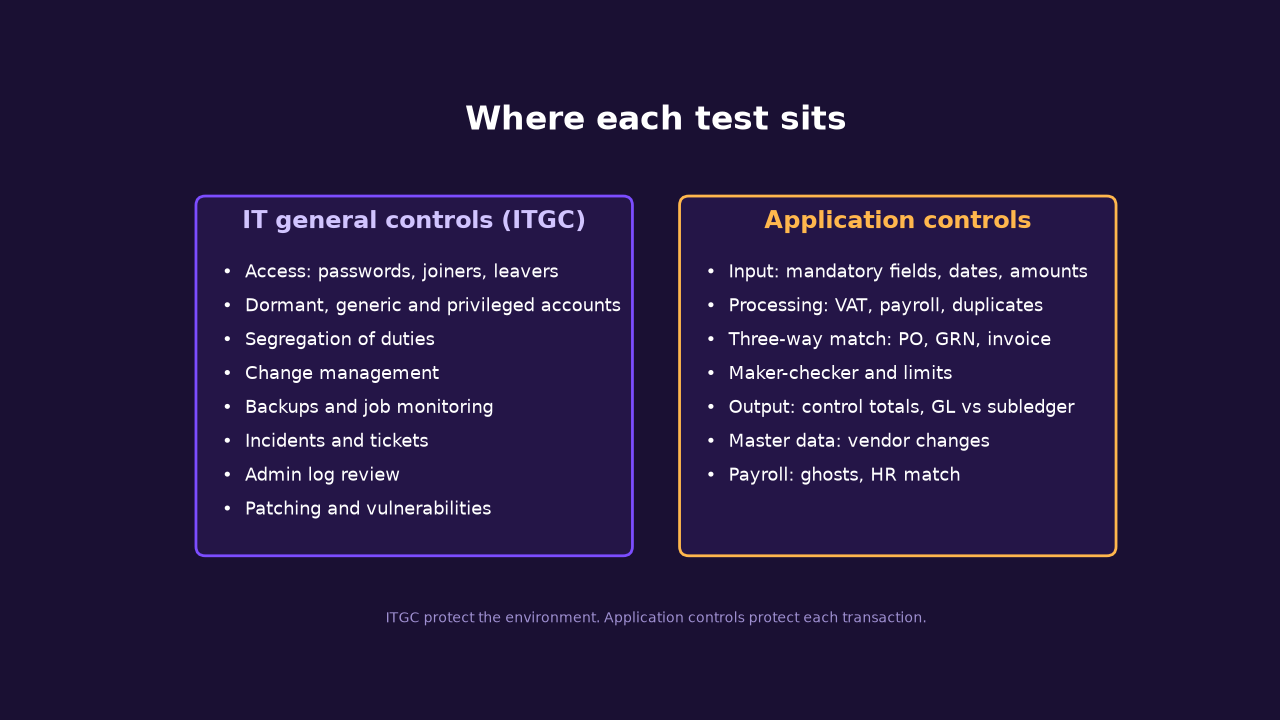
This guide on testing IT general controls and application controls is the one I want you to keep open while you do your own audit assignment. It is long on purpose. We start with access controls, which are the core of the IT general controls (ITGC), then cover change management, backups, incidents, logs and patching, and then move to application controls like maker-checker, input checks, three-way match and payroll. Every test has the same layout: the objective, the data you need, the steps in IDEA, what you should find in the practice data, how to read it, and how to word the finding. There are also practice datasets and the IDEA Education installer you can download right here.
All the data is fictional. The company is Kampala Trading Co. Ltd, which does not exist, and the people in the files are made up. Nothing here comes from a real client or a real auditor.
What is in this guide on general and application controls
- Why test controls with data
- Get IDEA Education v14 and the practice datasets
- Import the data and prove it is complete
- Part A: IT general controls (access, change, backups, incidents, logs, patching)
- Part B: Application controls (maker-checker, input, processing, three-way match, reconciliation, master data, payroll)
- Documenting results, findings and management responses
- Common mistakes, practice questions and summary table
- Sources
Why test controls with data
A control is a rule the business relies on, such as "every payment above a limit is approved by a second person". Testing it by sample tells you about the ten items you picked. Testing it with data analysis tells you about all of them. In the practice files we have 5,000 vouchers. A sample of 25 would almost certainly miss the 60 self-approved payments hidden in there. Running one equation over the whole file finds every one in seconds.
That does not replace judgement. IDEA gives you exceptions. You still decide whether an exception is a real control failure, a timing quirk or bad data, and you still write the finding in a way management understands. If you have not read the earlier posts in this series, start with Phase 1: planning the work, then Phase 2: fieldwork and evidence and Phase 3: reporting. This post lives inside Phase 2: it is the fieldwork for your tests of controls.
Before you open IDEA, write down for each test what the control is, what data proves it, and what an exception looks like. Auditors call this the test objective and the exception criteria. If you cannot write the exception in one sentence, you are not ready to run the test.
Get IDEA Education v14 and the practice datasets
IDEA Education version 14 is the CaseWare Analytics tool many universities use for teaching data analysis. The installer I use for the class is below. It is a Windows installer of about 856 MB, so use Wi-Fi and give it a few minutes.
This is the Education edition provided for coursework, so use it for learning only. Follow the licence terms that come with the software during installation. If you want the product details, CaseWare publishes them on the IDEA product page. Installing needs administrator rights on your computer, so if you are on a lab machine, ask your lab technician first.
Next, the practice datasets. Download the ZIP, which has every file as both CSV and XLSX plus a data dictionary in PDF and Excel. IDEA can import either format. I prefer CSV because it avoids Excel quirks with dates.
Or pick only the files you need:
- hr_master (620 rows): HR master list of employees of Kampala Trading Co. Ltd (fictional). Source of truth for who works there and when they left. CSV · XLSX
- system_users (670 rows): User accounts extracted from the ERP. Compare with HR for leavers, orphans, duplicates, password and dormancy tests. CSV · XLSX
- access_requests (640 rows): Approved access request forms. Compare approval date with the date access was granted. CSV · XLSX
- revocation_requests (120 rows): Leaver access revocation tickets: HR termination date, request date and the date the account was actually disabled. CSV · XLSX
- roles (19 rows): List of ERP roles. CSV · XLSX
- user_roles (742 rows): Which user holds which role (a user can hold several). CSV · XLSX
- sod_conflicts (11 rows): Segregation of duties conflict matrix: role pairs that should not be held by one person. CSV · XLSX
- approver_limits (28 rows): Payment approval limit in UGX per approver. CSV · XLSX
- transactions (5,000 rows): Payment and journal vouchers for 2025 with maker, checker and timestamps. CSV · XLSX
- vendors (150 rows): Vendor master file. CSV · XLSX
- vendor_changes (296 rows): Change log of vendor master data (bank details, phone, etc.). CSV · XLSX
- purchase_orders (800 rows): Purchase orders. CSV · XLSX
- grn (775 rows): Goods received notes. CSV · XLSX
- invoices (825 rows): Supplier invoices captured for payment. CSV · XLSX
- payroll (516 rows): December 2025 payroll run. Simplified practice formulas, see notes below. CSV · XLSX
- change_log (900 rows): IT change management register for 2025. CSV · XLSX
- backup_log (1,797 rows): Daily backup job log, five systems, 2025. CSV · XLSX
- incident_tickets (1,540 rows): Service desk incident tickets for 2025. CSV · XLSX
- admin_audit_log (3,610 rows): Administrator activity log extract for 2025 (log_id is sequential). CSV · XLSX
- patch_status (800 rows): Asset patch and vulnerability status as at 31 Dec 2025. CSV · XLSX
- gl_vs_subledger (60 rows): Month-end GL control account balance against the subledger total, 2025. CSV · XLSX
- control_totals (21 rows): Record counts and control totals supplied by the (fictional) source systems. Use to prove your import is complete. CSV · XLSX
The reference "as at" date for all age calculations is 31 December 2025. When a test says "older than 90 days", count back from that date, not from today. Every file was built to contain a realistic mix of clean records and seeded exceptions. I know the exact numbers and I keep them in my own marking key, so below I give you approximate counts. If your numbers are far off, check your equation before you blame the data.
Import the data and prove it is complete
Every test starts here. Skipping data checks is the most common reason an IT auditor presents a finding that falls apart in the exit meeting. If the file you analysed is incomplete, your exceptions mean nothing.
Step 1. Import with the Import Assistant
- Start IDEA and create or open a project for this audit (for example "Kampala Trading access review").
- Use the Import Assistant from the File menu and choose the CSV or Excel option. Browse to hr_master.csv.
- Check the preview. Set ID fields such as emp_id and voucher_no as character fields, not numeric. Set date fields as date with the right format (the files use YYYY-MM-DD). Set amount fields as numeric.
- Finish the import. IDEA creates a new database, which you will see in the project explorer. Repeat for each file you need.
The menu names change slightly between versions and between the ribbon and classic layouts. If you cannot find a tool, search the Help for the tool name. I only use the standard tool names below.
Step 2. Check record counts against control totals
- Import control_totals.csv. It lists the number of records and one control total per file, as if the client's system had printed them.
- Open each imported database and look at the record count shown for it.
- Run Field Statistics on the amount field of transactions and compare the sum with the control total.
All the practice files agree with their control totals. In a real audit, when they do not, you stop and go back to the client. Never carry on with data you cannot reconcile to the source.
Step 3. Run Field Statistics on every important field
Field Statistics gives you the minimum, maximum, average, number of zero, negative and blank values for numeric fields, and the earliest and latest dates for date fields. In transactions you should see dates in 2025, some negative and zero amounts, and a few dates in 2026. In system_users, look at blank last_login and password_last_changed. Do not worry yet. We test those later. The aim here is to know your data.
Step 4. Keep an audit trail
IDEA records every operation you run in the project History. Do not delete it. Name each result database clearly, for example T01_pw_older_90, so your working paper can reference it.
Part A: IT general controls
ITGC are the controls around the systems: who can log in, who can change code, whether backups run. If they are weak, you cannot rely on the application controls in Part B. That is why auditors test them first.
A1. Access management
The five tests below are the core of this guide. The standards behind them are the same everywhere: user access is approved, reviewed, removed when no longer needed, and privileged access is controlled. ISO 27001 covers this in Annex A controls on identity management, access rights, access control and privileged access, and COBIT has equivalent management practices. See the sources at the end.
A1.1 Password aging and password policy
Objective. Confirm passwords are changed regularly and no account is exempt without justification.
Data. system_users: password_last_changed, password_never_expires, account_status, username.
Steps in IDEA.
- Open system_users and use Direct Extraction (Data menu) to create a new database from active accounts only:
account_status = "Active". - From that result, extract accounts where the password is older than 90 days. One way is
@Age(password_last_changed,"20251231") > 90. Check in the Help that your version of @Age returns days between the two dates. - Extract accounts whose password was never changed. Blank dates import as empty, so use the blank test in the Help for your version, or filter for blanks in the extraction criteria.
- Extract
password_never_expires = "Y". - Extract the default account names with
username = "ADMIN" .OR. username = "TEST" .OR. username = "GUEST" .OR. username = "DEMO".
What you should find. Around 45 accounts with a password older than 90 days, about 16 with no change date at all, about 30 with a non-expiring password (including all five service accounts), and four default accounts.
How to read it. Not every non-expiring password is a finding. Service accounts often need it. But there should be a documented exception, an owner and compensating controls such as a very long random password. Default accounts with never-changed passwords are the ones that make auditors nervous.
Finding wording. "We identified 45 active accounts whose passwords were not changed in more than 90 days, and 16 more with no change date recorded, contrary to the 90-day policy, and 4 default accounts (ADMIN, TEST, GUEST, DEMO) with no password change recorded. This increases the risk of unauthorised access."
Risk rating. High if privileged or default accounts are involved, otherwise Medium.
A1.2 Joiners and leavers
Objective. Confirm that leavers lose access promptly and joiners only get access that was approved.
Data. hr_master, system_users, access_requests, revocation_requests.
Steps in IDEA.
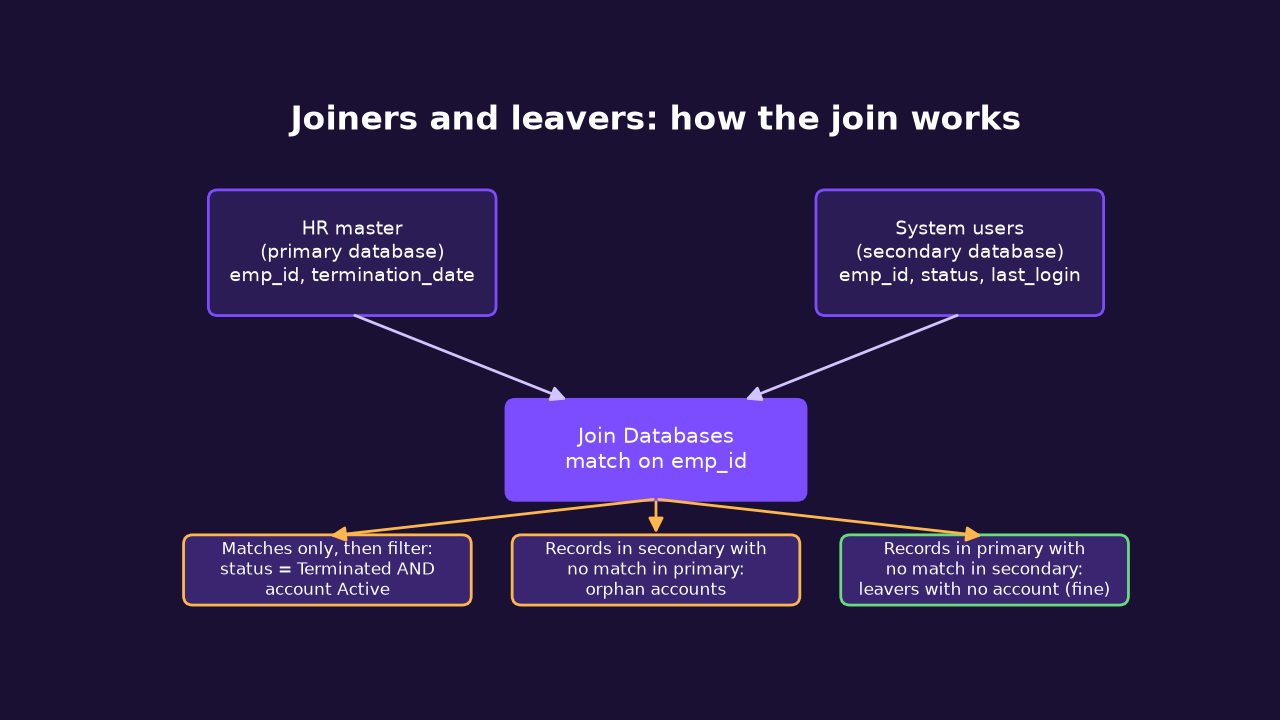
- Leavers still active: use Join Databases with hr_master as the primary database and system_users as secondary, matching on emp_id. Choose Matches only.
- Extract from the joined result where
status = "Terminated" .AND. account_status = "Active". These are leavers with live accounts. - Login after leaving: in the same joined result, extract
last_login > termination_date. These people (or someone using their account) logged in after they left. - Late revocation: use revocation_requests and add a virtual numeric field for the days between termination_date and actual_disable_date. Extract those where days is more than 7, and those where the disable date is blank (never revoked).
- Revoked then used: join revocation_requests to system_users on username and extract
last_login > actual_disable_date. - Joiners without approval: join hr_master (primary) to access_requests (secondary) on emp_id and choose Records with no secondary match. Extract joiners hired in 2025 from the result.
- Approvals out of order: in access_requests extract
approval_date > access_granted_dateand records where approver_id is blank.
What you should find. Roughly 25 leavers still active, about half of them with a login after termination. About 22 accounts disabled more than a week late and 8 that logged in after being disabled. Around 20 of the 80 joiners in 2025 have no access request, about 30 requests have no approval and about 25 were approved after access was granted.
How to read it. The leavers still active are your most serious items. Ask whether the login after termination was the person or a colleague. Also note the late disables: the account may have been unused, but the control still failed.
Finding wording. "At year end, 25 employees who had left the company still had active accounts, and for 12 of them the system recorded a login after their termination date. Revocation requests were not actioned within the 7-day standard for 22 further leavers."
Risk rating. High.
A1.3 Dormant accounts
Objective. Confirm unused accounts are identified and disabled.
Data. system_users: last_login, account_status.
Steps in IDEA.
- Extract active accounts where
@Age(last_login,"20251231") > 90. - Extract active accounts where last_login is blank (never logged in).
- Join the result to hr_master if you want to see whether the owner is still employed.
What you should find. About 40 dormant active accounts and about 8 accounts that never logged in.
How to read it. A dormant account is an open door nobody is watching. Look at the privilege_level of each one before you rate it.
Finding wording. "40 active accounts had not been used for more than 90 days at 31 December 2025, and 8 accounts had never been used."
Risk rating. Medium. High if any hold Admin privilege.
A1.4 Generic, shared, orphan and duplicate accounts
Objective. Confirm every account is tied to one accountable person.
Data. system_users, hr_master.
Steps in IDEA.
- Extract
account_type = "Generic"and look at which ones have privilege_level Admin or Elevated and which have a blank owner_emp_id. - Find orphans: join system_users (primary) to hr_master (secondary) on emp_id and choose Records with no secondary match. Ignore generic and service accounts, which have no emp_id by design.
- Find duplicates: run Duplicate Key Detection on system_users with emp_id as the key. Exclude records where emp_id is blank.
What you should find. 20 generic accounts (about 12 without an owner, 5 with admin or elevated rights), 15 accounts whose emp_id is not in HR, and 10 employees who have two accounts.
How to read it. Generic accounts break accountability: if ADMIN deletes a record, who did it? Orphans are the worst because they may belong to ex-contractors or fabricated users.
Finding wording. "20 generic accounts exist, 12 of which have no named owner, and 15 accounts could not be matched to any employee in the HR master."
Risk rating. High.
A1.5 Segregation of duties (SoD)
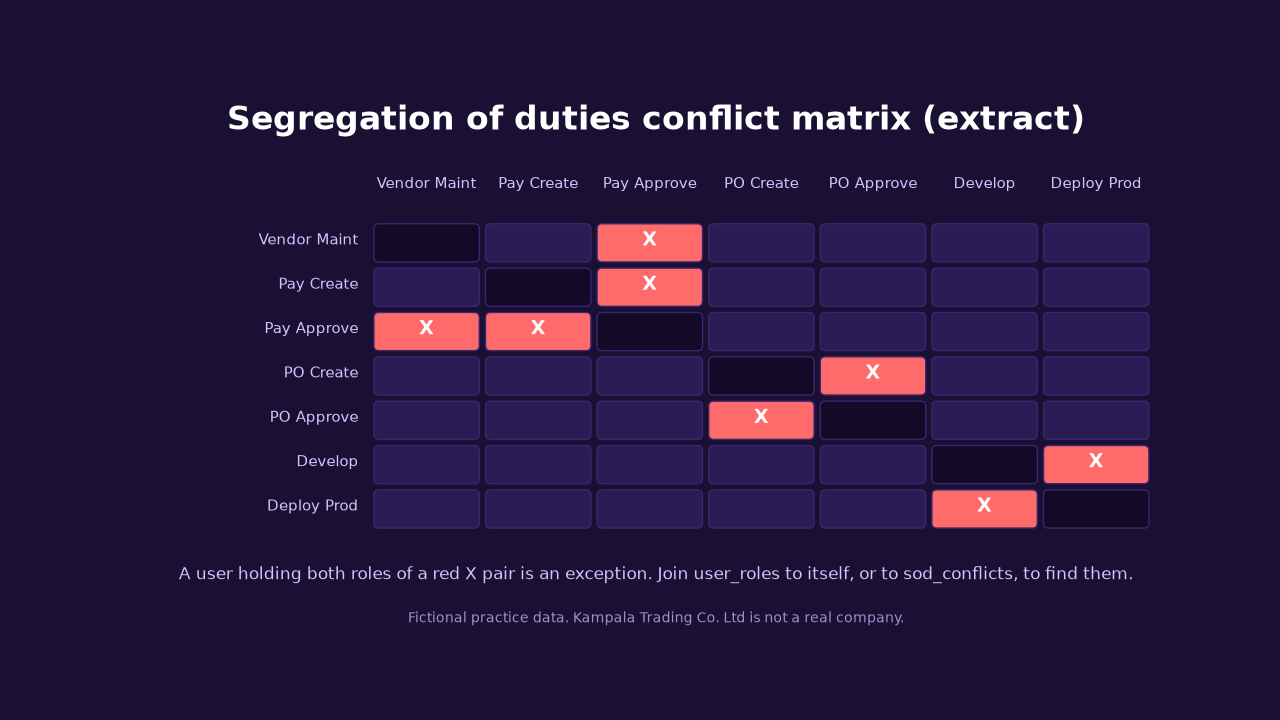
Objective. Confirm nobody holds two roles that, together, let them commit and hide an error or fraud.
Data. user_roles (one row per user per role), sod_conflicts (role pairs that conflict), roles.
Steps in IDEA.
- Open sod_conflicts first. Each row is a pair of roles that must not sit together.
- Join user_roles to sod_conflicts on role_a to get users holding the first role, and keep the result.
- Join that result back to user_roles on user_id and role_b, choosing Matches only. Users that match hold both roles of a conflicting pair. Repeat the logic for each pair, or append the conflict pairs into one file first.
- Run Summarization on user_id to count conflicts per user, and on the pair to count users per conflict.
What you should find. 40 users with a conflict. The biggest groups are users who can create and approve payments, create and approve vendors, and develop and deploy code.
How to read it. A conflict is a risk, not proof of fraud. Check whether a compensating control exists, for example a manager review of everything that user approves. If not, rate it. Note which conflicting users also appear as self-approvers in the transaction tests. That connection makes a strong finding.
Finding wording. "40 users hold combinations of roles that conflict under the company's SoD matrix, including 8 who can both create and approve payments."
Risk rating. High for payment, vendor and payroll conflicts, Medium for the rest.
A2. Change management
A2.1 Changes without approval, testing or separation
Objective. Confirm every production change is approved, tested and released by someone independent of the developer.
Data. change_log, user_roles.
Steps in IDEA.
- Extract
approver = ""andchange_type <> "Emergency". These are normal changes with no approval. - Extract non-emergency changes where
deployed_date < approval_date. - Extract
test_result = "Not tested"andtest_result = "Fail"from changes that have a deployed date. - Join change_log (deployed_by) to user_roles filtered to the Developer role (R15). Matches are changes pushed to production by a developer.
- Run Summarization on change_type to see how many changes were emergencies. Extract emergency changes with no approval.
What you should find. About 30 non-emergency changes with no approval, 20 deployed before approval, 37 deployed without testing, 10 deployed after a failed test, 18 deployed by a developer, and 40 emergency changes of which 12 were never approved.
How to read it. Emergency changes are allowed to go first and be approved after. The control is the retrospective approval. The 12 emergency changes that never got one are the real finding. Developers deploying their own code means nobody checked it.
Finding wording. "Of 900 changes in 2025, 30 normal changes had no recorded approval, 20 were deployed before approval and 18 were released to production by developers."
Risk rating. High.
A3. Backups and job monitoring
A3.1 Failed, missing and suspicious backups
Objective. Confirm backups run every day and failures are followed up.
Data. backup_log: system, backup_date, status, size_gb.
Steps in IDEA.
- Extract
status = "Failed"andstatus = "Warning". - Extract successful backups where
size_gb = 0. A success with nothing written is a failure in disguise. - Sort on system then backup_date. Run Gaps Detection on backup_date, using system as a key if your version supports it. If it does not, run it once per system. Daily backups should have no gaps.
What you should find. 22 failed backups, 15 with warnings, 6 zero-size backups and about 28 missing system-days, which show up as 20 gaps.
How to read it. A backup that failed once and succeeded the next day is a minor issue. A system with a run of missing days means there was no restore point for that period. Ask whether anyone ever tested a restore. The log cannot tell you that.
Finding wording. "For five key systems, 28 daily backups were missing and 22 failed in 2025, with no evidence in the log of follow-up or re-run."
Risk rating. Medium. High if the payroll or ERP database is affected.
A4. Incident and ticket management
A4.1 SLA breaches and tickets closed without resolution
Objective. Confirm incidents are resolved within the agreed time and closed properly.
Data. incident_tickets.
Steps in IDEA.
- Add a virtual numeric field: hours between opened_datetime and resolved_datetime. If your version imports datetimes as text, split date and time during import, or compute with date and time functions from the Help.
- Extract tickets where the hours are greater than sla_hours.
- Extract
status = "Closed"with a blank resolution_notes, and closed tickets with no resolved time. - Extract open tickets opened more than 30 days before 31 December.
What you should find. About 120 SLA breaches, 30 closed with no notes, 18 closed with no resolved time and 8 old open tickets.
How to read it. Measure breaches by priority. A handful of P4 breaches matter far less than P1 breaches. Use Summarization on priority to show this.
Finding wording. "120 incidents (8% of closed tickets) were resolved outside SLA and 48 closed tickets had no evidence of resolution."
Risk rating. Medium.
A5. Privileged activity and log review
A5.1 Out-of-hours admin actions and log gaps
Objective. Confirm administrator activity is monitored and logs cannot be silently removed.
Data. admin_audit_log, system_users.
Steps in IDEA.
- Extract sensitive actions (Create user, Reset password, Change role, Export data, Delete log, Disable audit) done outside 06:00 to 20:00 or at weekends, excluding the scheduler account SVC_SCHED.
- Extract
action = "Delete log"oraction = "Disable audit". - Join the log to system_users and extract actions by generic accounts such as ADMIN.
- Run Gaps Detection on log_id. Missing numbers mean records were deleted.
- Run Gaps Detection on the event date with a gap tolerance of one day to find days with no events. The scheduler logs every night, so a real gap means the log stopped.
What you should find. About 40 out-of-hours sensitive actions (6 are log deletion or audit disabling), about 25 actions by shared admin accounts, and 64 missing log numbers in 21 gaps, including a large block in mid-August 2025.
How to read it. Delete log and Disable audit are the ones that matter most. They are what someone does to hide something. A block of missing log numbers is a major red flag.
Finding wording. "The audit log has 64 missing entries in 21 gaps, including a three-day period in August 2025, and 6 events show audit logging being disabled or logs deleted."
Risk rating. High.
A6. Patch and vulnerability status
A6.1 Overdue critical patches and unsupported systems
Objective. Confirm critical patches are applied within policy (30 days here) and no unsupported systems are in use.
Data. patch_status.
Steps in IDEA.
- Extract assets with pending_critical_patches greater than 0 and oldest_pending_released more than 30 days before 31 December 2025.
- Run Summarization on criticality to see the spread.
- Extract
os_support_status = "End of life". - Extract assets with last_scan_date older than 90 days, and assets with a blank owner_emp_id.
What you should find. About 60 overdue assets (25 of them High criticality), 18 end-of-life systems, 35 not scanned in 90 days and 10 with no owner.
How to read it. High criticality assets with overdue patches go first in the report. Unowned assets are hard to fix because nobody feels responsible.
Finding wording. "60 assets had critical patches pending for more than 30 days, 25 of them business-critical, and 18 systems run operating systems that are no longer supported."
Risk rating. High.
Part B: Application controls
Application controls work inside the business process. They check the data going in, the calculations, and what comes out. This is where most financial fraud and error happen, so it is worth the time.
B1. Maker-checker on transactions
B1.1 Self-approval, missing approval, order of events and limits
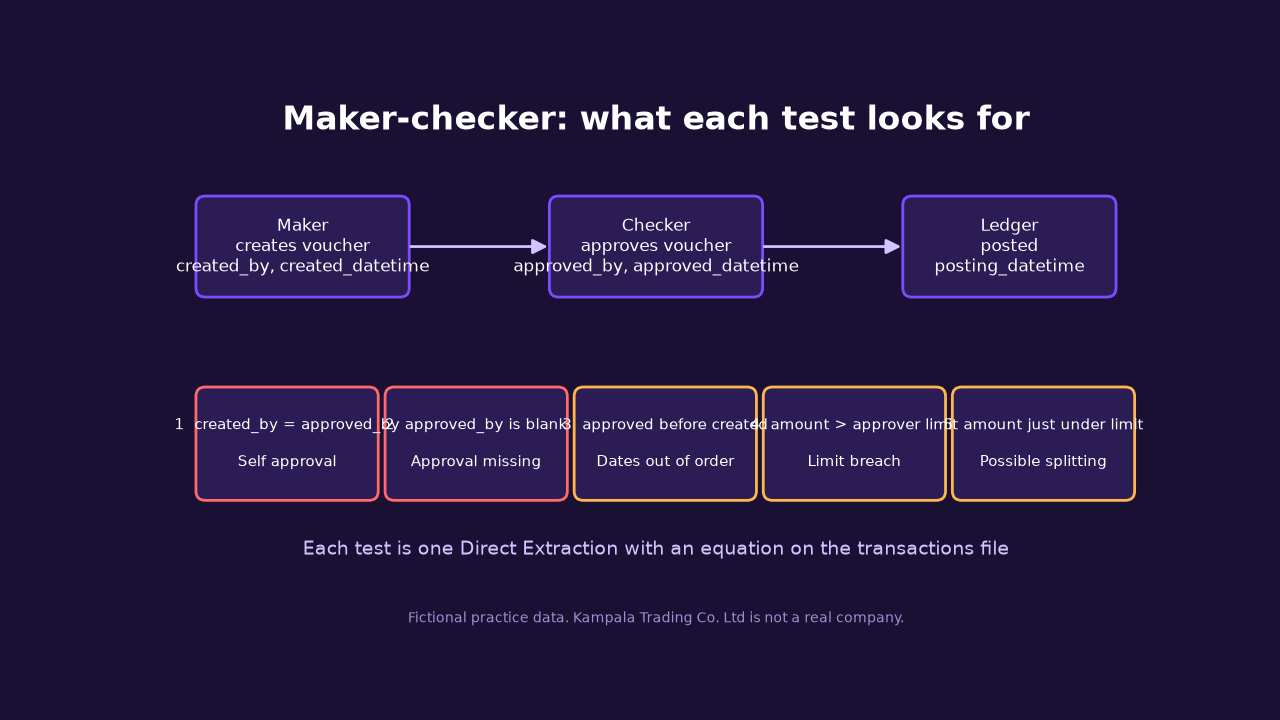
Objective. Confirm every voucher is created by one person, approved by a different authorised person, in that order and within their limit.
Data. transactions, approver_limits.
Steps in IDEA.
- Self-approval: extract
created_by = approved_by .AND. approved_by <> "". - Missing approval: extract
approved_by = "". - Approval before creation: extract
approved_datetime < created_datetime. - Limit breaches: join transactions (primary, payments only) to approver_limits on approved_by = username and extract
amount > approval_limit. - Near-limit amounts: extract amounts from 9,500,000 to 9,999,999, just under the 10 million threshold.
What you should find. About 60 self-approved vouchers, 40 posted with no approval, 25 approved before they were created, 20 over the approver's limit and 35 just under the 10 million mark.
How to read it. Look at who the self-approvers are with Summarization on created_by. You will find they are few people, which points to a role design problem (see A1.5), not random mistakes. Amounts clustered just under a threshold suggest splitting or deliberately avoiding the next approval level.
Finding wording. "60 payment vouchers worth about UGX 172 million were created and approved by the same user, 40 vouchers worth about UGX 90 million were posted without any approval, and 20 payments exceeded the approver's authorised limit."
Risk rating. High.
B2. Input controls: completeness and validation
B2.1 Missing fields, invalid values and future dates
Objective. Confirm the system rejects incomplete or illogical data at entry.
Data. transactions.
Steps in IDEA.
- Extract
description = "". - Extract payment vouchers with a blank vendor_id.
- Extract
amount < 0andamount = 0. - Extract vouchers created after 31 December 2025.
What you should find. About 20 with no description, 12 payments with no vendor, 15 negative amounts, 10 zero amounts and 12 dated in 2026.
How to read it. Negative amounts may be legitimate credit notes, so ask. Zero value vouchers and payments to a blank vendor should never pass validation. If they exist, the input control did not work.
Finding wording. "The system allowed vouchers with no vendor (12), zero value (10) and dates after period end (12), indicating weak input validation."
Risk rating. Medium.
B3. Processing controls: recalculation, duplicates, gaps and unusual timing
B3.1 Recalculate VAT and totals
Objective. Confirm the system calculates correctly.
Data. invoices: net_amount, vat_amount, total_amount, qty_invoiced, unit_price.
Steps in IDEA.
- Add a virtual field
net_amount - (qty_invoiced * unit_price)and extract non-zero results. - Add a virtual field for expected VAT:
net_amount * 0.18, then extract where the difference from vat_amount is more than 1. - Check total_amount equals net plus VAT.
What you should find. About 12 invoices where net is not quantity times price, and about 18 with the wrong VAT.
How to read it. Recalculation is the cheapest test in this guide and it catches configuration errors that repeat on every transaction. Check whether the errors favour the supplier or the company.
Finding wording. "18 supplier invoices had VAT that did not equal 18% of the net amount."
Risk rating. Medium.
B3.2 Duplicate payments, voucher gaps, round amounts, timing and Benford
Objective. Detect unusual transactions that the standard controls would not flag.
Data. transactions.
Steps in IDEA.
- Duplicates: run Duplicate Key Detection with vendor_id, amount and the creation date as keys. Ignore negative amounts.
- Gaps: sort on voucher_no and run Gaps Detection. Missing voucher numbers could be cancelled vouchers or deleted ones. Ask for the cancellation register.
- Round amounts: extract amounts that are multiples of 1,000,000 and at least 1,000,000.
- Timing: extract postings on Saturday or Sunday, or before 06:00 or from 20:00, with amounts of 20 million or more. Day of week and hour functions are listed in the Help for your version.
- Benford: IDEA includes a Benford analysis of the leading digits. Run it on amount for the payment vouchers. Treat it as a pointer only. Spikes at certain digits are a reason to look closer, not proof of anything.
What you should find. About 15 duplicate pairs, 35 missing voucher numbers in about 24 gaps, 50 round amounts, 30 large postings at weekends or at night (plus about 100 small weekend postings that are noise), and a visible bump in digit 9 caused by amounts just below 10 million.
How to read it. Analytics produce questions. A duplicate may be a legitimate repeated monthly payment. Ask the process owner, then decide.
Finding wording. "15 pairs of payments to the same vendor for the same amount on the same day were processed, with a total of about UGX 32 million in duplicated value, and 30 postings above UGX 20 million, worth about UGX 960 million, were made outside business hours."
Risk rating. High for duplicates and after-hours large payments.
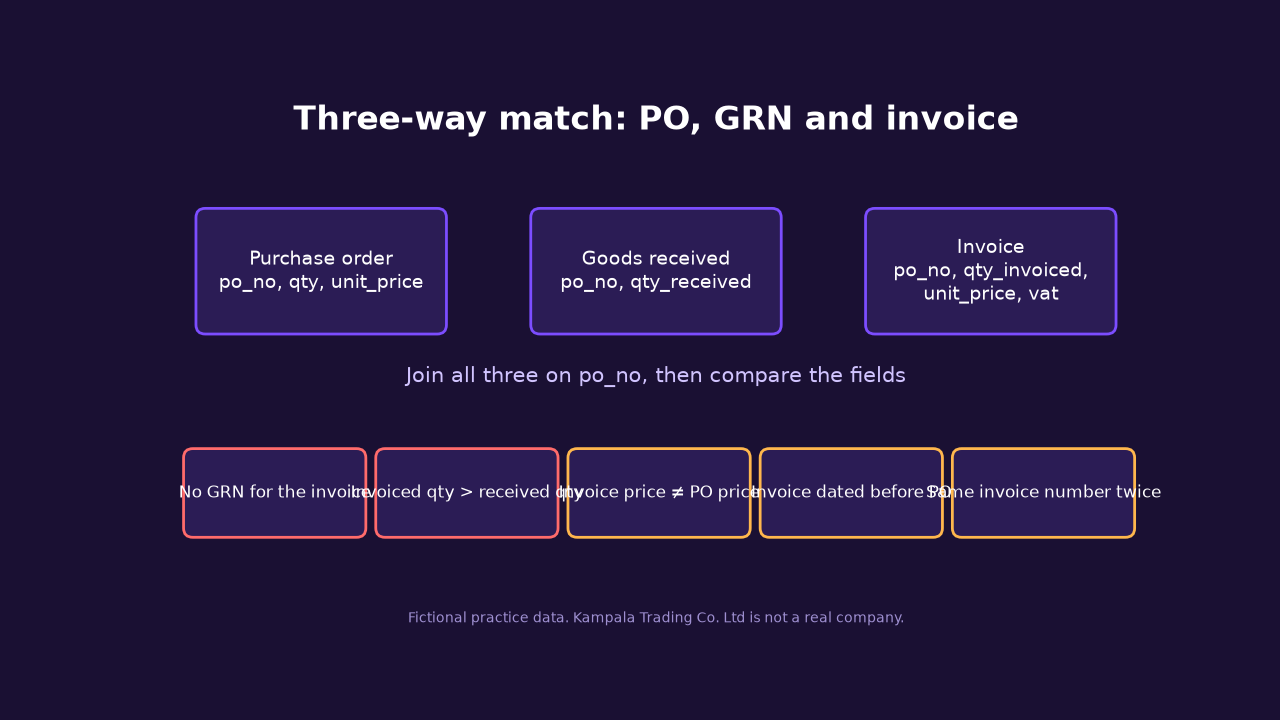
B4. Three-way match
B4.1 PO, GRN and invoice agree before payment
Objective. Confirm the company only pays for what it ordered and received, at the agreed price.
Data. purchase_orders, grn, invoices.
Steps in IDEA.
- Join invoices (primary) to purchase_orders on po_no using Matches only, then join that result to grn on po_no using All records in primary file so invoices with no GRN stay in.
- Invoices with no GRN: blank qty_received.
- Invoiced quantity greater than quantity received.
- Invoice unit price different from the PO price.
- Invoice dated before the PO.
- Invoices with no PO: join in the other direction with Records with no secondary match.
- Duplicate invoices: Duplicate Key Detection on invoice_no and vendor_id.
- POs approved by their creator:
created_by = approved_byin purchase_orders.
What you should find. About 25 invoices with no GRN, 20 where more was billed than received, 20 price differences, 10 invoices dated before the PO, 15 with no PO at all, 10 duplicate invoices and 8 self-approved POs.
How to read it. Price differences should be small, if any. Invoices without a PO are a bypass of the purchasing control.
Finding wording. "25 invoices were paid with no goods received note on file and 20 invoices billed for more than the quantity received."
Risk rating. High.
B5. Output and reconciliation controls
B5.1 GL against subledger
Objective. Confirm the control accounts in the general ledger agree with the subledgers.
Data. gl_vs_subledger.
Steps in IDEA.
- Add a virtual field for gl_balance minus subledger_balance (or use the supplied difference and confirm it).
- Extract where the absolute difference is not zero.
- Summarize by area to see where the problems cluster.
What you should find. About 15 months-areas with a difference: 9 over UGX 1 million and 6 of rounding size.
How to read it. Small rounding differences are normal and explained. Large ones should have a reconciliation with reconciling items. Ask for it.
Finding wording. "For 9 month-end control accounts the GL and subledger differed by more than UGX 1 million with no reconciliation provided."
Risk rating. Medium to High depending on size.
B6. Master data: vendor changes
B6.1 Vendor bank detail changes and vendor oddities
Objective. Confirm changes to vendor master data are authorised and cannot be used to divert payments.
Data. vendors, vendor_changes, transactions, hr_master, user_roles.
Steps in IDEA.
- Extract
field_changed = "Bank account"from vendor_changes. - Join to transactions on vendor_id and keep payments created within seven days after the change.
- Extract changes with no approver.
- Join vendor_changes to user_roles to find changes made by users who can also approve payments (R01 and R02).
- In vendors, run Duplicate Key Detection on tin for duplicate vendors, and on bank_account for shared bank accounts.
- Join vendors to hr_master on bank_account. A match means a vendor is paid into an employee's account.
What you should find. About 20 bank changes followed by a payment within a week, 25 changes with no approval (12 of them bank changes), 6 changes by SoD users, 8 duplicate vendor pairs, 5 vendors without a TIN, 6 vendors with employee bank accounts and 4 pairs of vendors sharing an account.
How to read it. A bank change followed quickly by a payment is a classic fraud pattern, because someone redirects the payment. Treat each as a lead and call the vendor on a known number to confirm.
Finding wording. "6 vendors have bank accounts identical to those of employees, and 20 vendors received payments within seven days of a change in their bank details."
Risk rating. High.
B7. Payroll
B7.1 Ghost employees and payroll accuracy
Objective. Confirm only real, current employees are paid, correctly.
Data. payroll, hr_master.
Steps in IDEA.
- Join payroll (primary) to hr_master on emp_id and choose Records with no secondary match. These are payroll lines with no HR record.
- Join with Matches only and extract
status = "Terminated". These are terminated staff still being paid. - Run Duplicate Key Detection on bank_account. Two employees on one account is a ghost indicator.
- Extract lines where payroll bank_account differs from the HR bank_account.
- Recalculate: gross against basic plus allowances, net against gross minus PAYE and NSSF, and PAYE against the table in the data dictionary. The PAYE table is simplified for practice, not for real work. Always use the current URA tables for a real audit.
What you should find. 6 lines with no HR record, 10 terminated employees paid in December, 8 pairs of shared bank accounts, 18 bank account differences (8 of them the shared accounts), 15 wrong gross, 15 wrong net and 10 lines with PAYE set to zero.
How to read it. The six ghosts plus ten terminated employees are your strongest finding. Do not stop at the list. Ask who maintained each payroll line and who approved the run. That links back to SoD.
Finding wording. "6 payroll payments, totalling about UGX 5.6 million for December, were made to individuals not in the HR master, and 10 employees who had left before December were still paid about UGX 12 million."
Risk rating. High.
Documenting results, findings and management responses
The best analysis is worthless if your working paper cannot be followed. Here is the layout I want from you for each test.
| Section | What goes in it |
|---|---|
| Reference and title | A1.2 Joiners and leavers |
| Objective and control tested | One sentence each |
| Source data | File names, record counts, control totals checked |
| Procedure | The IDEA steps, with the equation text copied exactly |
| Results | Number of exceptions, total value, a screenshot of the result database header |
| Conclusion | Effective, partly effective or not effective |
| Finding | Condition, criteria, cause, effect, recommendation |
| Management response | Their words, an owner and a date |
Use IDEA's History to prove the steps you ran. Export the exceptions to Excel as an appendix, but always keep the IDEA project so another auditor can repeat what you did.
Exception summary table
| Test | Population | Exceptions | Rating |
|---|---|---|---|
| A1.2 Leavers still active | 120 leavers | 25 | High |
| B1.1 Self-approved vouchers | 5,000 vouchers | 60 | High |
| A1.1 Passwords older than 90 days | active accounts | 45 | Medium |
| B4.1 Invoices with no GRN | 825 invoices | 25 | High |
Always give the population next to the exceptions. "25 exceptions" means little until the reader knows it was out of 120.
Management response
Management agrees, disagrees or explains. An explanation such as "that was an approved emergency" must come with evidence. If management says an exception is a false positive, go back and test that claim with data. This is where the exit meeting from Phase 3 gets practical.
Common mistakes
- Not checking record counts and control totals before analysing.
- Testing the wrong population, for example including disabled accounts in a dormancy test.
- Using today's date instead of the audit as-at date in age calculations.
- Treating every exception as fraud. Exceptions are leads. Confirm before accusing.
- Overwriting the original files. Always work on copies and keep the History.
- Reporting counts without value or population.
- Forgetting to link findings. Self-approvers, SoD conflicts and weak joiner controls are often one story told three ways.
Practice exercises
- Which users are both SoD conflicts and self-approvers? What does that suggest about the root cause?
- How many of the leavers who are still active have Admin or Elevated privileges?
- Of the late revocations, what is the average number of days to disable? Is the 7-day policy realistic?
- List vendors who were paid within seven days of a bank change. Which ones had no approver on the change?
- Identify the employees paid by payroll who also appear as vendor bank account owners.
- How many of the 40 emergency changes were deployed by a developer?
- Pick three tests and write the full finding, with population, exceptions, cause, effect and recommendation.
- For the transactions file, rank the self-approvers by total value approved. Who would you interview first, and why?
Summary of tests
| Test | IDEA tool | Key fields | Approx. exceptions |
|---|---|---|---|
| A1.1 Passwords | Direct Extraction | password_last_changed | ~45 |
| A1.2 Joiners and leavers | Join Databases | emp_id, termination_date | ~25 |
| A1.3 Dormant | Direct Extraction | last_login | ~40 |
| A1.4 Generic and duplicates | Duplicate Key Detection | emp_id | ~45 |
| A1.5 SoD | Join Databases | user_id, role_id | 40 users |
| A2.1 Changes | Direct Extraction | approver, test_result | ~125 |
| A3.1 Backups | Gaps Detection | backup_date | ~28 days |
| A4.1 Tickets | Direct Extraction | sla_hours | ~120 |
| A5.1 Admin logs | Gaps Detection | log_id | ~40 |
| A6.1 Patching | Direct Extraction | oldest_pending_released | ~60 |
| B1.1 Maker-checker | Direct Extraction | created_by, approved_by | ~60 |
| B2.1 Input | Direct Extraction | amount, description | ~70 |
| B3.1 Recalculation | Add field + Extraction | vat_amount | ~30 |
| B3.2 Unusual transactions | Duplicate Key, Gaps | vendor_id, voucher_no | ~130 |
| B4.1 Three-way match | Join Databases | po_no | ~100 |
| B5.1 GL vs subledger | Direct Extraction | difference | ~15 |
| B6.1 Vendor master | Join Databases | vendor_id, bank_account | ~85 |
| B7.1 Payroll | Join Databases | emp_id, bank_account | ~80 |
Sources and further reading
- CaseWare IDEA product page. For the exact menu names in your version, use the Help that ships with IDEA.
- ISACA COBIT, for management practices on access, change, and monitoring.
- ISO/IEC 27001. Annex A has the controls on identity and access management, access rights, access control, and privileged access. The standard itself is paid; use the summary on the ISO page.
- Uganda Revenue Authority for current PAYE and VAT rules, because the payroll rates in my practice data are simplified.
If you find a mistake in the datasets or in this guide, tell me in the comments below, and I will fix it. If you complete the exercises, post your finding wording and comment on someone else's. That is part of the assignment anyway.
Your Assignment: Test, Document and Critique
Reading a guide like this teaches you very little until you run the tests yourself and defend your results to someone who is not on your side. This assignment is built for that. You will test real controls on the practice data, write up your work the way an IT auditor would, and then critique the work of other IT auditors. It takes the three skills that matter most in the field: finding the exception, explaining it clearly, and judging somebody else's conclusion fairly.
1. Set up
- Install IDEA Education v14 using the installer card in the "Get IDEA Education v14 and the practice datasets" section above, and follow the licence terms that come with it.
- Download the practice datasets ZIP from the card in the same section and unzip it somewhere you can find it again.
- Create a new IDEA project and import the files you need with the Import Assistant.
- Before you test anything, check the record count of every file you imported against control_totals, and run Field Statistics on the amount fields. Write down the counts. If they do not agree, fix the import first.
2. The task
Choose at least five tests from this guide. Your choice must include:
- at least two IT general control tests (for example passwords, dormant accounts, change management, backups, logs or patching),
- at least two application control tests (for example input validation, recalculation, three-way match, GL reconciliation, vendor changes or payroll),
- at least one access test: joiners and leavers, segregation of duties, or maker-checker.
For each test, run it in IDEA and note the objective, the population you tested, the steps you followed, and the exceptions you found. Keep your IDEA project and its History. If your lecturer asks how you got a number, you should be able to show it.
3. Document and post your work
Post your submission as one comment on this article, in the comment box below. Do not split it over several comments. Copy the template below, paste it into the comment box and fill it in. Keep each test short and specific.
IT AUDIT SUBMISSION
Name and programme/year:

TESTS PERFORMED
Test 1 (e.g. A1.2 Leavers still active)
- Objective:
- Data used (files and record counts):
- IDEA steps (short):
Test 2 ...
(repeat for at least five tests)

RESULTS
Test 1: number of exceptions out of population:
Examples (a few IDs only):
ID | What was wrong | Value or date
...
(repeat for each test)

RISK RATING AND WHY
Test 1: High / Medium / Low, because ...

RECOMMENDATION FOR MANAGEMENT
Test 1: ...

LIMITATIONS AND WHAT I WOULD DO DIFFERENTLY
...

REFLECTION
What surprised me, what went wrong, and what I learnt:
A few rules about the numbers. Use the exceptions IDEA gave you, not estimates. Show a small table of example IDs for every test, not the full list. Exception counts will be checked against the lecturer's own key, so an honest count with a clear method beats a lucky guess every time.
4. Peer critique
Once you have posted, reply to at least two other IT auditors' submissions. Use the Reply button under their comment so your critique stays attached to their work. A good critique covers five things:
- Reproducible steps. Could you repeat their test from what they wrote?
- Plausible counts. Do their exception counts make sense for the population and the data?
- Justified rating. Does the risk rating follow from the evidence?
- Practical recommendation. Could management actually do it?
- One suggestion that would make the work better.
PEER CRITIQUE
Submission I reviewed: (name)
Reproducible? (steps clear or not, and which one was unclear)
Counts plausible? (which test and why)
Rating justified? (agree or disagree and why)
Recommendation practical? (what would you change)
One suggestion to improve:
| Do | Do not |
|---|---|
| Point to a specific test and a specific number. | Write "good work" or "needs improvement" and stop. |
| Be kind and direct. Say what worked first. | Make it personal or mock a mistake. |
| Try their steps in IDEA if you can, and report what happened. | Copy their findings or their wording into your own submission. |
| Suggest a better test, equation or wording. | Repeat the same critique on every submission you review. |
5. Sign in to comment
Commenting needs you to be signed in, and your profile must be complete. If you are not signed in, a sign-in box will appear when you try to post. You can use Continue with Google or your email and password. Your draft is kept and posted for you after you sign in. If it asks for your profile details, fill them in once and carry on. Your name and details are what let your lecturer match your submission and your critiques to you.
Marking rubric
| Criterion | What full marks look like | Weight |
|---|---|---|
| Technical accuracy | Correct tests, correct population, exception counts that match the data, equations that work | 30 |
| Documentation quality | Follows the template, clear objective, steps and examples, one tidy comment | 20 |
| Risk judgement | Ratings justified by the evidence, with sensible links between findings | 20 |
| Quality of peer critique | At least two specific, kind, useful replies that cover the five points | 20 |
| Reflection | Honest, specific, shows what you learnt and what you would change | 10 |
| Total | 100 |
Deadline: submit by the date your lecturer sets. Late submissions follow your lecturer's rules.
When you are ready, scroll down to the comments and post your submission. I am looking forward to reading your work.